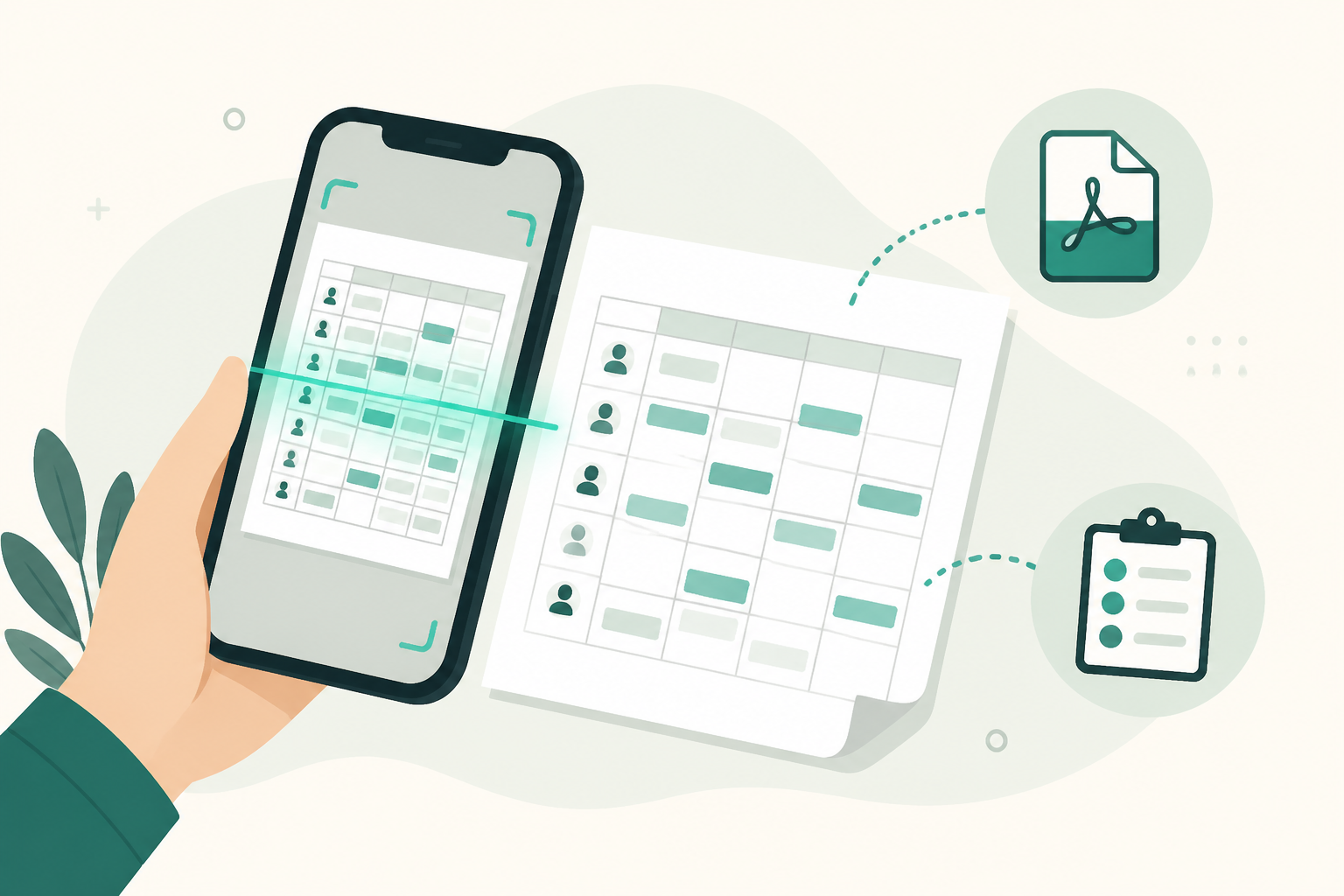
On-Device OCR Scanning
Read schedule screenshots and PDFs with Apple Vision—entirely on your iPhone.
ShiftInbox:シフト表同期
ShiftInbox:シフト表同期 reads schedule screenshots, PDFs, copied messages, and ICS files on your iPhone—then shows exactly what changed before syncing to Apple Calendar. No login. No employer backend. No external AI.
完全インポート2回無料。Lifetime Pro買い切り—サブスクなし。
Browse real app screens showing import, diff review, and calendar sync for multi-shift schedules.
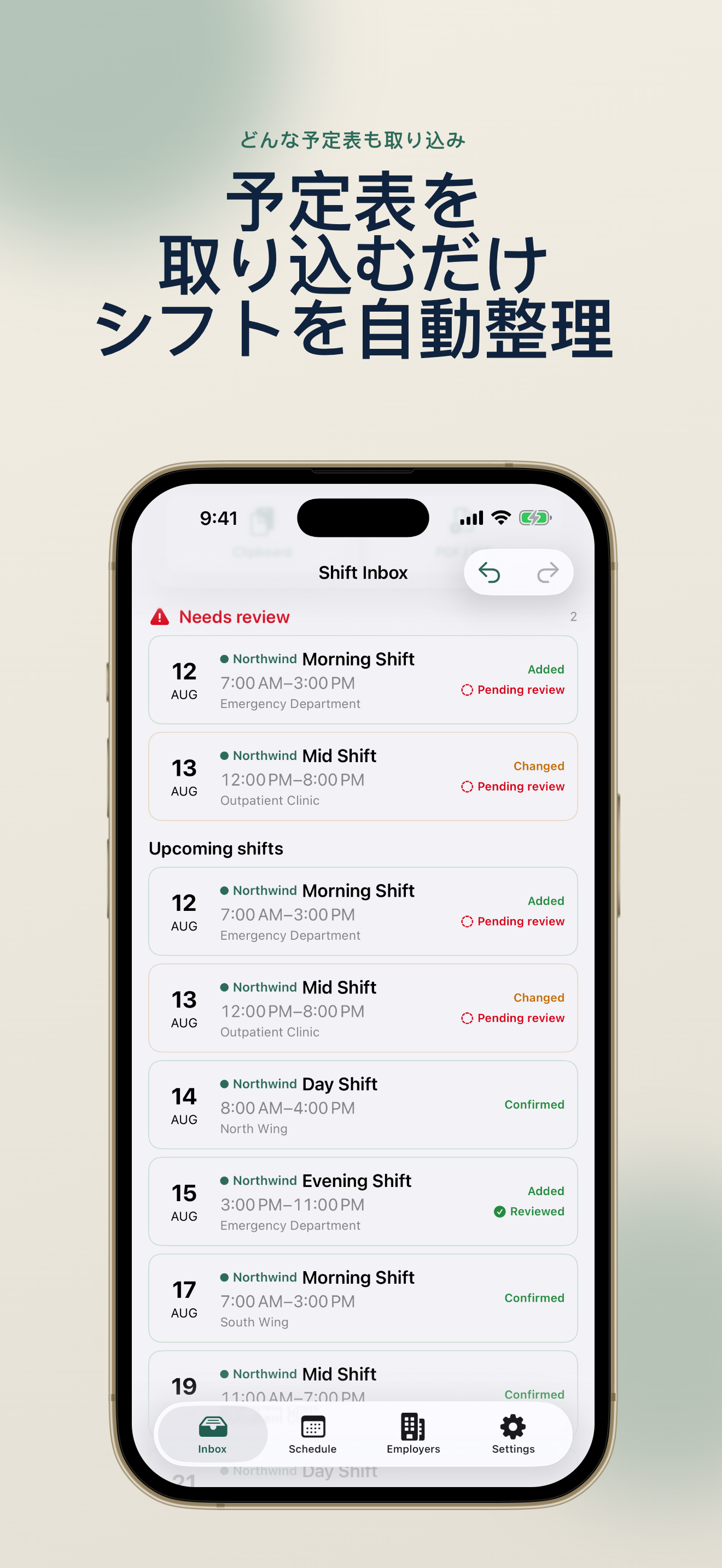
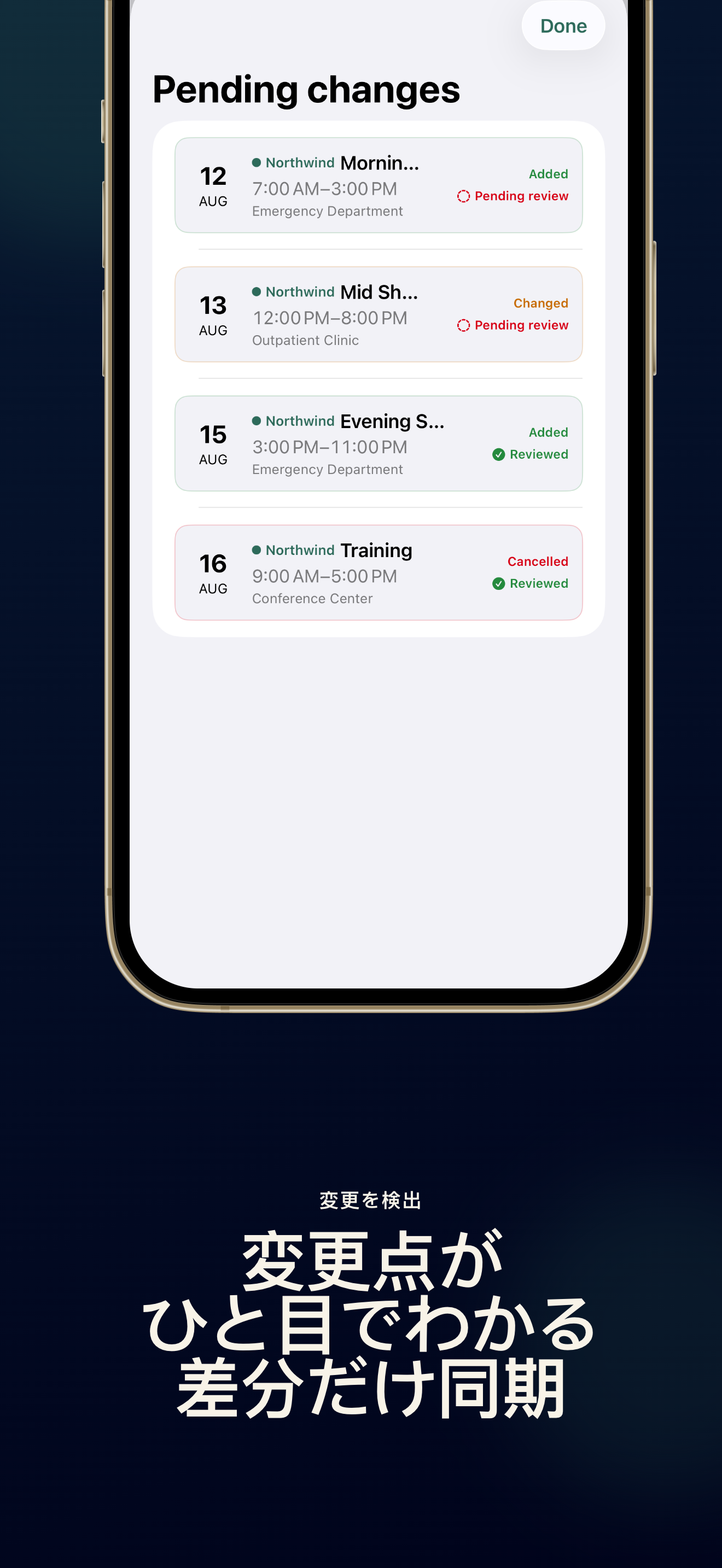
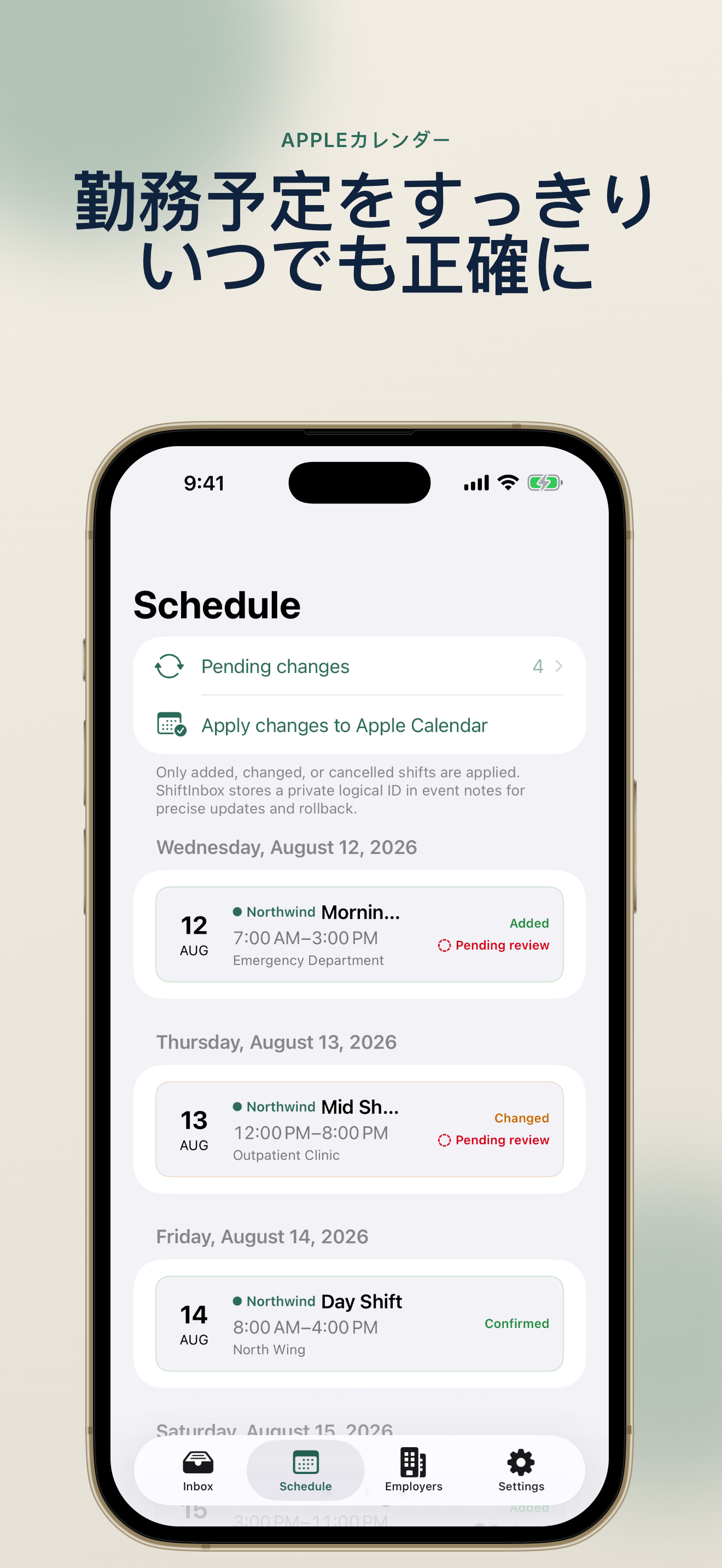
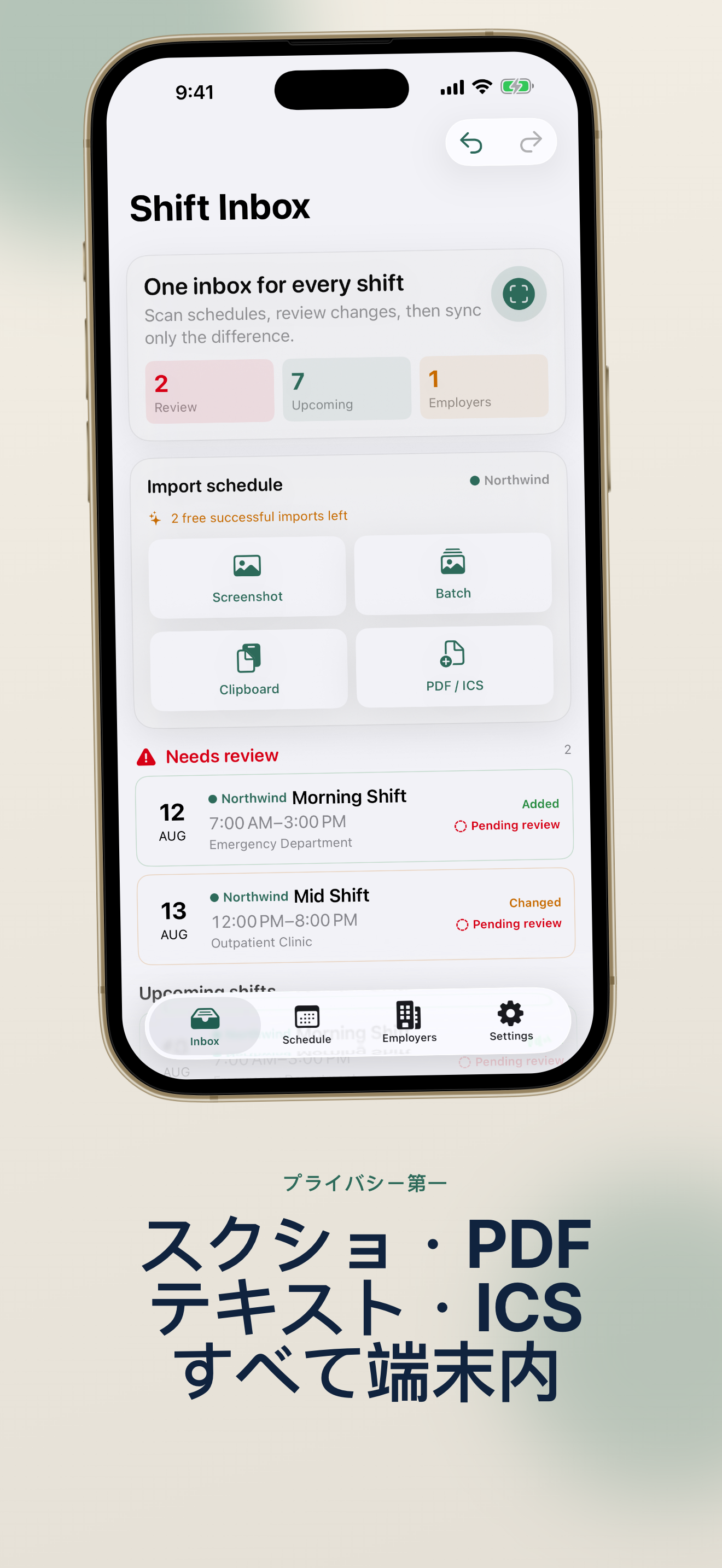
From messy roster screenshots to a calm Apple Calendar—ShiftInbox:シフト表同期 keeps every employer schedule under control.
Bring in screenshots, PDFs, copied messages, or ICS files. On-device Vision OCR reads them privately on your iPhone.
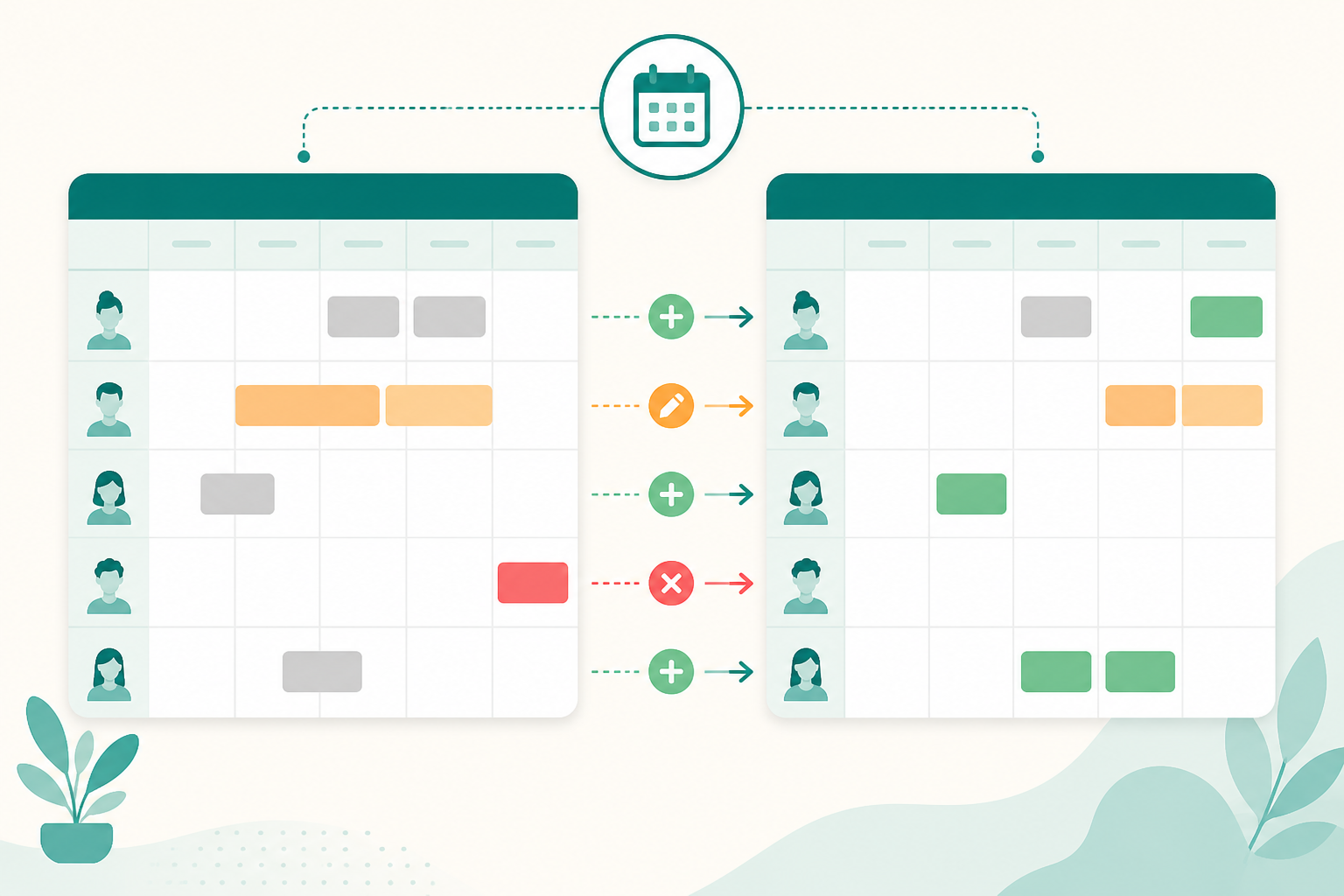
Compare a newly imported schedule with its previous version. Added shifts in green, time changes in orange, conflicts in red.
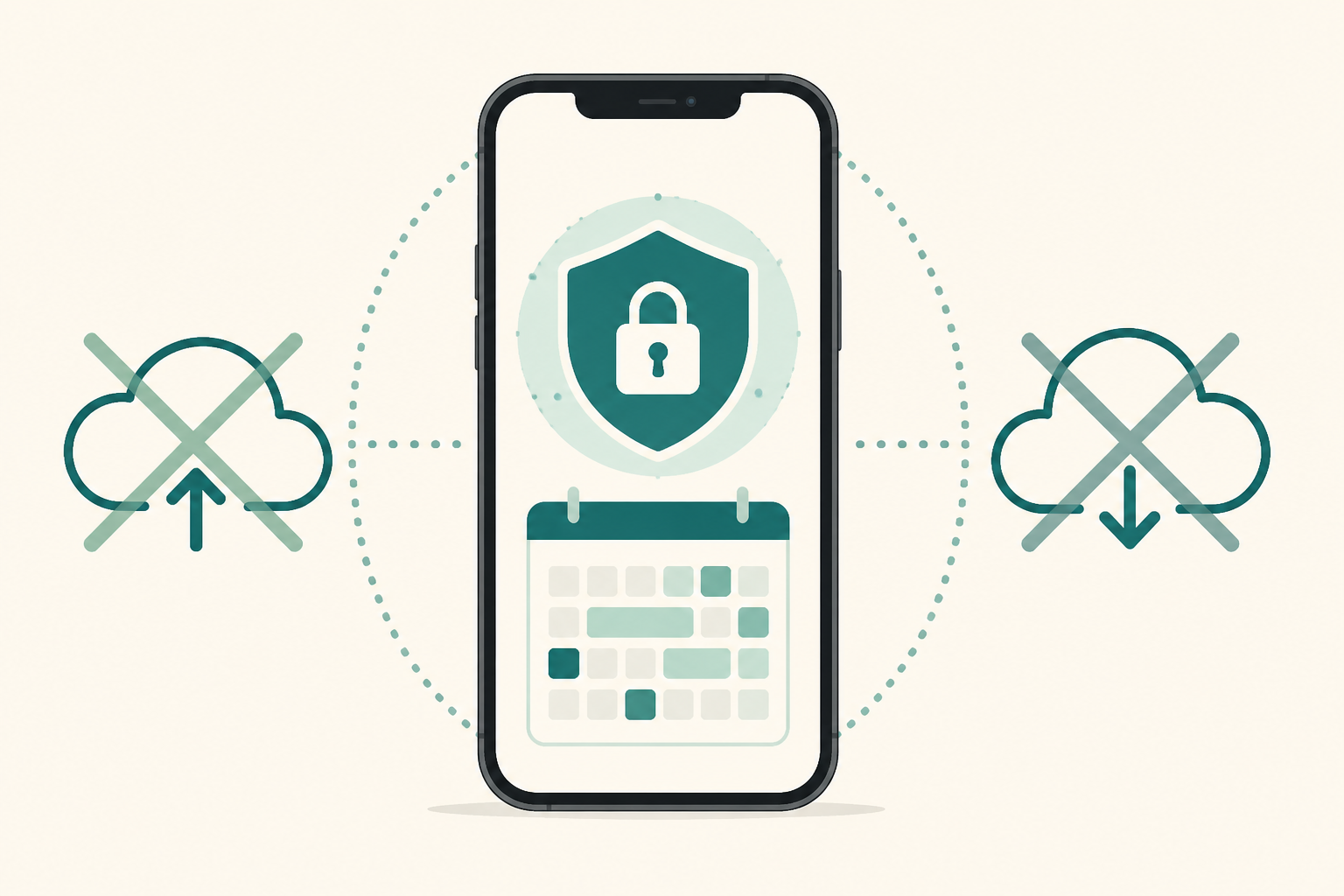
Your employer schedule data stays on your devices. ShiftInbox:シフト表同期 uses on-device Vision OCR—no login, no external AI.
Everything you need to turn roster chaos into a reliable Apple Calendar workflow.
Read schedule screenshots and PDFs with Apple Vision—entirely on your iPhone.
Apply only approved changes. Each event stores a private logical ID for accurate updates and rollbacks.
Manage schedules from different jobs, each routed to its own Apple Calendar.
Keep every import version and roll back to any previous schedule snapshot.
Send PDFs, ICS files, images, or text directly from other apps into ShiftInbox.
Sync your ShiftInbox data across iPhone and iPad with Apple iCloud.
Whether you juggle one job or several, ShiftInbox:シフト表同期 keeps your shifts organized.
Import rotating roster screenshots and sync approved changes to Apple Calendar without manual entry.
PopularTurn PDF schedules and shared roster files into calendar events with diff review.
Field workersHandle weekly shift changes from screenshots or copied group messages quickly.
Part-timeRoute each employer to a separate calendar and keep every shift in one ShiftInbox inbox.
Multi-jobThree steps from a schedule screenshot to a synced Apple Calendar.
Share a screenshot, PDF, ICS file, or copied text into ShiftInbox. On-device OCR extracts shift dates, times, and labels.
Compare the new schedule against your last import. Green means new shifts, orange means time changes, red means conflicts or cancellations.
Low-confidence OCR fields are highlighted so you can confirm every row before syncing.
Tap Apply to sync only the shifts you approved. ShiftInbox stores a private logical ID in each event for precise future updates and rollbacks.
Free users get two successful imports. Failed or cancelled imports do not count.
Read FAQCommon questions about privacy, pricing, and how シフト表同期 works.
No. ShiftInbox uses on-device Apple Vision OCR to read schedules. Your employer data stays on your iPhone. Optional iCloud sync (Pro) uses Apple's CloudKit—no developer-owned backend.
You get two successful imports for free, including manual review, conflict blocking, and basic calendar sync. Failed recognition or cancelled imports do not consume your allowance.
Single or batch screenshots, PDFs, clipboard text, ICS calendar files, and content shared via the Share Extension (images, PDFs, ICS, plain text).
No. Lifetime Pro is a one-time, non-consumable purchase through the App Store. It does not renew automatically.
No login or employer backend is required. ShiftInbox: Multi-Shift Sync works entirely on your device.
Each synced Apple Calendar event includes a private ShiftInbox logical ID in its notes. Later imports use this ID to update, cancel, or roll back the correct shift.
Turn roster screenshots into a calm Apple Calendar workflow.
Two complete imports free—Lifetime Pro unlocks unlimited sync.
Requires iOS 17 or later. Schedule parsing and storage are local to your device.